

Automating Security Assessments with Prowler and EventBridge (Part 2)

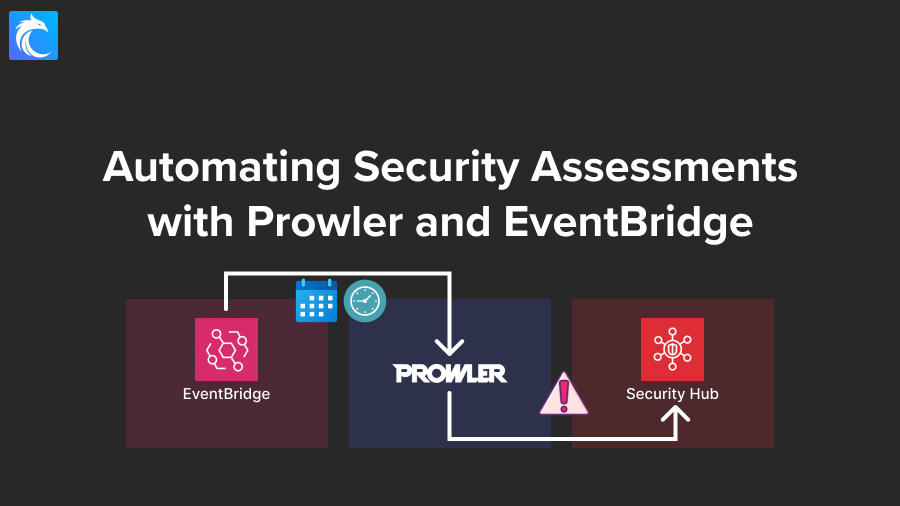
In the prior post, we learned how to configure Prowler to run serverless in CodeBuild and to push findings to Security Hub, and we mentioned that we could use EventBridge to run this automatically and on a schedule without any human interaction.
In this guide, we’ll see exactly how to set that up.
Let’s get started.
Prefer video walkthroughs? We’ve got that here.
Prerequisites
If you want to follow along, you’ll either need to go through part 1 and build out our project, or you’ll need to have another project ready to go. EventBridge supports many integrations, not just CodeBuild, but that’s what we’ll focus on in this walkthrough.

As you can see, I have a ProwlerScans project ready to go in my CodeBuild dashboard. This is what I want to run automatically on a regular schedule — meaning that I want EventBridge to automatically trigger a build.
Let’s navigate over to EventBridge to get started.
Create a schedule in EventBridge
From the menu, navigate to Schedules.

From there, click on Create schedule.
I’ll name my schedule RunProwlerScans.
I’ll use this for the description:
Run regular prowler scans through CodeBuild which pushes findings to Security Hub.
For the schedule group, we can leave it to the default selection, which is a schedule group automatically created for you. Generally you want to organize schedules with a common purpose in their own group, so a best practice would be to create your own schedule group, but it’s not required.

For the Schedule Pattern, we can either select One-time schedule or Recurring schedule. For what we’re doing, we need the latter.
This selection will provide us new options, including setting a timezone, schedule type, expression, and time window.
For the time zone, what you choose is entirely up to you — I’ll select my local timezone.
For the schedule type:
- Rate-based is useful if we want to run it at a set rate, like every x minutes, hours, or days.
- Cron expressions, instead, make more sense if you want to run them at a specific time and/or on a specific day. For example, if you want to run it every Monday at 3:00am.
The format for cron expressions uses:
cron(minutes hours day-of-month month day-of-week year)
For example if I want it to run on the 15th of every month at 2 AM, I could use:
cron(0 2 15 * ? *)
- 0 for minute zero
- 2 for 2am
- 15 for the 15th of the month
- for every month
- ? since we specified the 15th already, we don’t want to set a day of the week
- for every year

For the Rate expression, this is where we could set something like 30 days.

However, for this post’s purposes, that doesn’t make any sense. We want to make sure that this works, so let’s set a lower rate. Let’s instead change the unit to minutes, and then let’s set it to 1 or 2 minutes.
We could also set a flexible time window, but we don’t need it for this demo, so select Off.

We don’t need to set a timeframe, so we can click on Next and move on.
Select CodeBuild as your target
Next, we’re asked what our target is, and we can use templated targets to select CodeBuild as our target.

We get more options below, including which project we want to trigger. Select ProwlerScans or whatever your project name is.
As you can see, we could also submit request parameters which would be added to the StartBuild API action, but we don’t need any for this project so we can click on Next.

Settings
Make sure that the schedule is set to Enable, and then for the “Action after schedule completion”, select NONE as we don’t want to delete the schedule after it completes.
Review the other options, though we’ll leave the defaults selected, and then check out the Permissions section.
EventBridge Scheduler needs permissions to send events to CodeBuild, so we need to create a new role for this schedule. This should be the default selection, so leave it and click on Next.
Review and Create schedule.
Test your schedule
With our schedule created, let’s navigate over to CodeBuild in a separate tab.
Click on your project, and refresh the Build History until you see that status change to “In progress.” This will take a minute or two.


Once you see that, you can head back to EventBridge and Disable the schedule. Since we’re testing to make sure this works, we don’t want to trigger another build, we just wanted to make sure this one triggered. Another one might still get triggered anyway, which is fine, but we don’t need a bunch going on.

Now that we’ve confirmed the build works, let’s edit the schedule to be the frequency you want, such as 30 days, or on a specific date/time.

Conclusion
That’s it! You’re not successfully running Prowler on a regular schedule using EventBridge.
You’ll want to make sure the project actually succeeds after running and that there aren’t any errors in the build, and you’ll want to periodically check to make sure that the schedule is functioning as you expected, but otherwise you’re done! You can re-create this using Infrastructure as Code with your tool of choice, test, and then deploy to production, or you can delete the schedule and delete the CodeBuild project if you were just playing around.
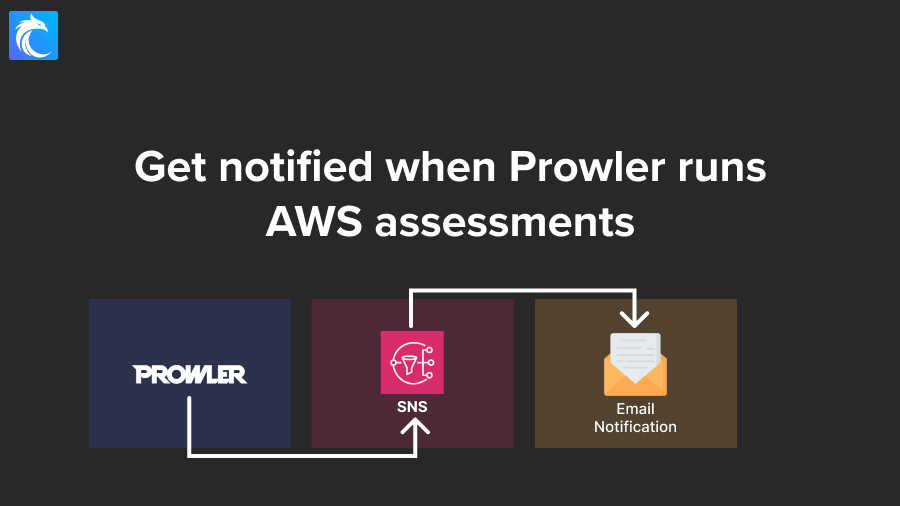
Next up, we’ve got part 3 that explains how to hook this up to SNS to send you notifications every time Prowler finishes running, so if you want to complete that step as well I would wait to delete until you’ve gone through that first!


Responses